> For the complete documentation index, see [llms.txt](https://foxecom.gitbook.io/minimog-theme/llms.txt). Markdown versions of documentation pages are available by appending `.md` to page URLs; this page is available as [Markdown](https://foxecom.gitbook.io/minimog-theme/theme-sections/promotion-countdown-timer.md).
# Promotion countdown timer 🔥
A guide to set up an promotion countdown timer
Promotion countdown timers can boost conversions by highlighting limited-time offers with a running clock, triggering a strong sense of FOMO. Research has shown that urgency-driven marketing tactics, such as countdown timers, can **increase conversion rates by up to 332%.**
Moreover, countdown timers effectively drive engagement and increase time spent on a website. According to studies, websites with countdown timers experience a **15% increase in engagement** compared to those without.
## How to add a Promotion countdown timer section to your Shopify store
{% hint style="info" %}
**Steps:**
1. In the theme editor **(Customize)**, click **Add section.**
2. Select **Promotion countdown timer.**
3. Make necessary changes.
4. **Save** the settings.
{% endhint %}
## How to edit a Promotion countdown timer section
### Section settings
#### General
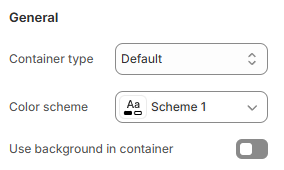
Adjust the **Container type** (Default/Full width/Use container box) and **Color scheme** for this section.
Toggle the **Use background in container** option on/off to enable/disable the background color within the container.
### Block settings
#### Text
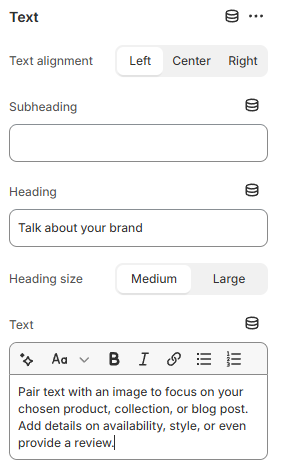
Insert the content you want in the **Heading, Subheading,** and **Text** to grab customers' attention, or leave it blank to display if you do not want to display them.
You can also change the **Heading size** to Medium/Large to make the content look reasonable on your website.
You can also align the text content by selecting one of the options in the **Text alignment** field (Left/Center/Right).
#### Countdown timer
Add a countdown timer and adjust the end time of the event.
You can also align the timer by selecting one of the options in the **Text alignment** field (Left/ Center/ Right).
The **Countdown type** offers two modes:
* **Evergreen**: A repeating countdown that resets after a specified duration (e.g., every month).
* This is useful for recurring sales, daily deals, or subscription cycles.
{% hint style="warning" %}
The Evergreen setting is only available in Minimog **version 6.0.0 and above**. ✨
See [Changelog](/minimog-theme/changelog.md).
{% endhint %}
* **Fixed time**: A one-time countdown that ends at a specific date and time.
* Ideal for limited-time promotions, event registrations, or product launches.
{% hint style="info" %}
If you choose the **Evergreen** countdown, you must specify the **Duration** for when the timer should reset.
**Duration** determines how often the countdown restarts.

{% endhint %}
{% hint style="info" %}
If you choose the **Fixed time** countdown, you need to specify when the countdown should end.
Enter the exact date and time in the **Ends time** field when the countdown should stop.

Date formats accepted: YYYY-MM-DD HH:MM:ss
*Example: 2026-09-26 11:00:00*
{% endhint %}
#### Button
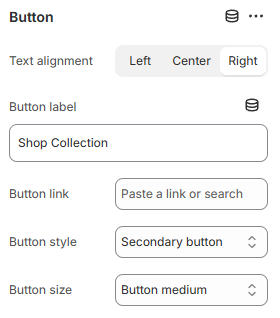
Display a call-to-action button to redirect customers to your desired pages.
Add a **Label** and **Link** for one or both, then choose a **Button style:**
* Primary button
* Secondary button
* Underline button/White button
and adjust the **Button size:**
* Button small
* Button medium
* Button large
You can also align the button by selecting one of the options in the **Text alignment** field (Left/ Center/ Right).