> For the complete documentation index, see [llms.txt](https://foxecom.gitbook.io/minimog-theme/llms.txt). Markdown versions of documentation pages are available by appending `.md` to page URLs; this page is available as [Markdown](https://foxecom.gitbook.io/minimog-theme/theme-sections/press.md).
# Press
Showcase news articles related to store's products, vendors. etc
Disclose a better insight on what the store is selling whether it is a product or a vendor, etc.

{% hint style="success" %}
Steps
1. In the theme editor (**Customize**), click **Add section**
2. Locate **Press**
3. Make necessary changes
4. **Save.**
{% endhint %}
## Section settings
### Section heading
Use the provided text fields to add a suitable heading/subheading/description. Leave any of the fields blank if you do not want to display them.
Adjust the text alignment (left/center) based on your requirements.

### General
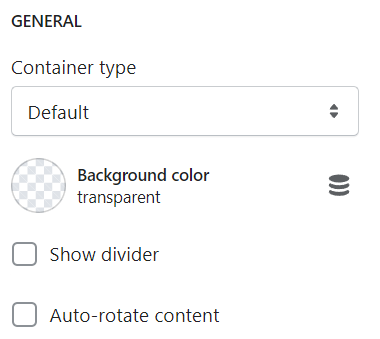
Change background color and container types consist of default, full width & container box.
You can enable to rotate newspaper blocks or show a divider on top of them.
## Block settings
Add content and an article link for the block using the blank fields. Display images for better visualization of what you want to demonstrate.