> For the complete documentation index, see [llms.txt](https://foxecom.gitbook.io/minimog-theme/llms.txt). Markdown versions of documentation pages are available by appending `.md` to page URLs; this page is available as [Markdown](https://foxecom.gitbook.io/minimog-theme/theme-sections/image-with-slider.md).
# Image with slider
Learn to use Image with slider to display a large number of visuals in an organized and interactive way
{% embed url="" %}
**Image with slider** is useful when you want to display several images but have limited space. This draws more visitors to your site.

## How to create an Image with slider
{% hint style="success" %}
Steps
1. In the theme editor (**Customize**), click **Add section**
2. Locate **Image with slider**
3. **Save**
{% endhint %}
## Section settings
### Section header and General
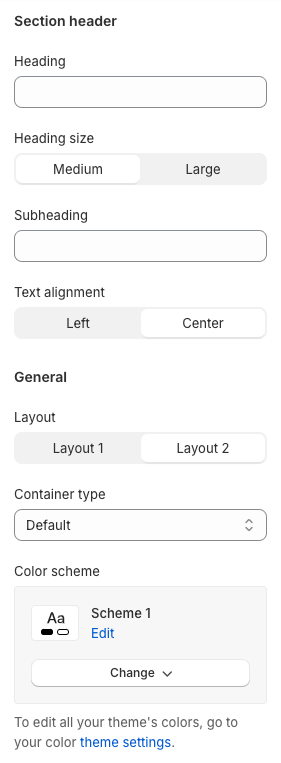
Use the provided text fields to add a suitable **Heading**/**Subheading**. Leave any of them blank if you do not want to display them. Adjust the **Heading size** (Medium/Large) and **Text alignment** (Left/Center) based on your requirements.
You can select the section **Container type** and **Color scheme**.
There are 2 layouts (Layout 1/ Layout 2) for this section, you can choose the one that suits your theme.
For example:
{% tabs %}
{% tab title="Layout 1" %}
{% endtab %}
{% tab title="Layout 2" %}
{% endtab %}
{% endtabs %}
### Slider
Enable/ disable auto-rotate sliders.
The duration time between each slide is 2-10 seconds.

### Banner
There are 3 banners in total to display divided into both sides of the slider.
This is where you can add the preferable image, enable call-to-action buttons and modify the button's size and style.

## Block settings
### Image and Content settings
Add images for the slider and insert text for heading/subheading/description.

### Button settings
Add call-to-action buttons and adjust their style, size, and links if needed.